

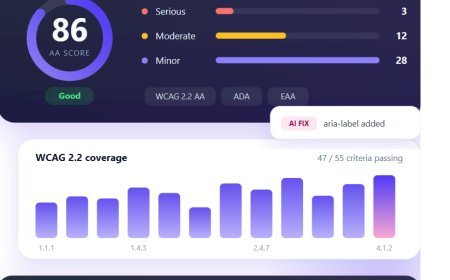















ADA Website Compliance Checklist: 25 Things Every Business Should Check
Ready to check your website against this list? Ariaprobe offers accessibility testing tools and expert guidance to help you identify barriers, prioritize fixes, and build a more inclusive—and compliant—website.


If you own a website in the USA, you've probably felt the anxiety creep in at some point: Am I ADA compliant? Could I get sued?
You're right to be concerned. Website accessibility lawsuits have surged dramatically. In 2025 alone, 3,117 federal website accessibility lawsuits were filed—a 27% increase from the previous year. And it's not just big corporations getting targeted. Small businesses, local shops, and startups are all in the crosshairs.
The good news? The vast majority of these lawsuits cite a small, predictable set of issues. Fix those, and you've eliminated most of your risk.
Here's your 25-point ADA website checker, organized by priority.
Why This Checklist Matters (The Legal Reality)
Before we dive in, let's be clear about what's at stake.
Title III ADA lawsuits (which apply to businesses) don't require the DOJ to act. Private plaintiffs can sue directly, and they do—thousands of times per year. In 2025, 90% of the nearly 4,000 tracked cases were filed by just 16 law firms.
What's the most common trigger? Missing or incorrect image alt text, inaccessible forms and checkout processes, keyboard navigation failures, poor color contrast, and improper heading structures.
The good news: these are fixable. The bad news: if you haven't checked, you're probably vulnerable.
The 25-Point ADA Website Compliance Checklist
Category 1: Images and Media (The Most Common Failures)
1. Every meaningful image has descriptive alt text.
Screen readers announce alt text to describe images. "IMG_2045.jpg" is useless. Describe what the image shows and why it matters.
2. Decorative images are marked as decorative.
Images that serve no informational purpose should have empty alt attributes (alt="") so screen readers skip them entirely.
3. Complex images have extended descriptions.
Charts, diagrams, and infographics need more than a short alt tag. Provide a text equivalent nearby or use long descriptions.
4. Videos have captions.
Every video with audio needs synchronized captions. Auto-generated captions are a starting point, but they must be accurate and include sound effects.
5. Audio content has written transcripts.
Podcasts, recorded webinars, and audio testimonials all need transcripts.
6. Media players have accessible controls.
Custom video players must be keyboard-accessible with properly labeled buttons.
Category 2: Navigation and Keyboard Access
7. The entire site works with keyboard alone.
Put your mouse aside. Can you reach every link, button, form field, and menu using only Tab, Shift+Tab, Enter, and Spacebar? If not, you have a barrier.
8. There are no keyboard traps.
Users must be able to Tab out of every component—modals, dropdowns, date pickers. Getting stuck is a critical failure.
9. Focus indicators are visible.
When you Tab through the page, can you clearly see which element is focused? A subtle or invisible focus outline makes keyboard navigation impossible.
10. A "Skip to Content" link exists.
This allows keyboard users to bypass repetitive navigation and jump straight to the main content.
11. Tab order follows a logical sequence.
Keyboard focus should move through the page in the same order it reads visually—left to right, top to bottom.
Category 3: Color and Visual Design
12. Body text meets 4.5:1 contrast ratio.
Use a contrast checker to verify. Gray text on white backgrounds is a common failure.
13. Large text meets 3:1 contrast ratio.
Large text is 18pt+ or 14pt+ bold. Headlines often fail this check.
14. UI components meet 3:1 contrast.
Buttons, form borders, icons, and focus indicators must be distinguishable from their backgrounds.
15. Color is never the only way to convey information.
"Required fields are in red" fails. Use text labels, icons, or patterns too.
16. Nothing flashes more than three times per second.
This can trigger seizures. Provide controls to pause, stop, or hide any moving content.
Category 4: Forms and Interactive Elements
17. Every form field has a visible, programmatic label.
A <label> element associated with each input via for and id attributes. Placeholder text is not a substitute.
18. Form errors are clearly identified and explained.
When submission fails, tell users exactly which field has the problem and how to fix it—in text, not just color.
19. Related form controls are grouped.
Use <fieldset> and <legend> for radio buttons, checkboxes, and address fields.
20. Interactive targets are at least 24×24 pixels.
Small tap targets—close buttons, icon links, checkboxes—are hard to use for people with motor impairments. Aim for 44×44 on mobile.
21. Dragging interactions have click alternatives.
If users can drag to reorder, resize, or move something, provide buttons or keyboard alternatives too.
Category 5: Content Structure and Semantics
22. Every page has a unique, descriptive title.
The <title> tag tells users and search engines what the page is about. "Page 1" or "Home" fails.
23. Headings follow a logical hierarchy.
One <h1> per page, then <h2> for sections, <h3> for subsections. Don't skip levels or use headings just for styling.
24. Links describe their destination.
"Click here" and "Read more" are accessibility failures. Link text should make sense out of context.
25. The page has a declared language attribute.
<html lang="en"> tells screen readers which pronunciation rules to use.
The Critical Mistake: Relying on Accessibility Widgets
This deserves its own section because it's costing businesses thousands.
Data from 2025 shows 456 lawsuits (22.6%) targeted websites that had accessibility widgets installed. Despite marketing claims, overlays and widgets are failing to protect businesses.
The FTC reached a $1 million settlement with accessiBe, finding the company misled businesses by marketing its widget as a guaranteed compliance tool.
The lesson: Real ADA compliance requires code-level fixes, not a JavaScript band-aid. Widgets can provide helpful user-facing tools, but they don't fix the underlying accessibility barriers that trigger lawsuits.
What's New in WCAG 2.2 (2026 Updates)
If your last compliance check was against WCAG 2.1, you're most of the way there. WCAG 2.2 adds nine new success criteria, six at Level AA.
The new Level AA criteria you need to check:
|
Criterion |
What It Requires |
|
2.4.11 Focus Not Obscured |
Sticky headers and chat widgets must not completely hide focused elements |
|
2.5.7 Dragging Movements |
Anything done by dragging must also work with simple clicks |
|
2.5.8 Target Size |
Interactive targets must be at least 24×24 CSS pixels |
|
3.2.6 Consistent Help |
Help mechanisms must appear in the same location on every page |
|
3.3.7 Redundant Entry |
Never force users to re-enter information already provided |
|
3.3.8 Accessible Authentication |
No memorization or transcription tests for login |
Important context: The DOJ extended compliance deadlines for state and local governments. Entities with populations of 50,000+ now have until April 26, 2027, and smaller entities until April 26, 2028. But private businesses under Title III face no such delay—lawsuits continue regardless.
How to Use This Checklist Effectively
Don't try to fix everything at once. Prioritize based on user impact:
-
Fix critical blockers first: Keyboard traps, missing form labels, inaccessible checkout processes. These are the issues most likely to trigger lawsuits.
-
Fix high-friction issues next: Color contrast, skip links, descriptive link text.
-
Fix minor issues last: Language attributes, decorative image marking.
-
Document everything. Your remediation efforts are evidence of good-faith compliance if a demand letter ever arrives.
Quick Tools for Your Audit
-
WAVE or axe DevTools for automated scanning (catches 30–40% of issues)
-
WebAIM Contrast Checker for color verification
-
NVDA (Windows) or VoiceOver (Mac) for screen reader testing
-
Keyboard only for navigation testing
Why Accessibility Fixes Boost SEO and Traffic
Here's the bonus most SEO agencies won't tell you: the same fixes that make your site accessible also improve your search visibility.
-
Semantic HTML and heading structure → Search engines understand your content hierarchy
-
Descriptive alt text → Image search visibility and additional indexable content
-
Lower bounce rates → When everyone can use your site, engagement signals improve
-
AI discoverability → AI systems rely on structured, machine-readable content
Accessible websites are naturally more SEO-friendly. The fixes serve both purposes.
Frequently Asked Questions
Is WCAG 2.2 the legal standard in the USA?
The ADA doesn't specify a version. Courts consistently use WCAG 2.1 Level AA as the benchmark, but WCAG 2.2 is backward compatible—meeting 2.2 AA automatically satisfies 2.1 requirements. Building to 2.2 keeps you ahead of evolving standards.
Can I just install an accessibility widget and be done?
No. 2025 data shows 456 lawsuits targeted sites with widgets installed. The FTC fined one widget company $1 million for misleading claims. Real compliance requires code-level fixes.
I'm a small business. Do I really need to worry?
Yes. Website accessibility lawsuits target businesses of all sizes. Small shops, restaurants, and professional services are frequently named.
How often should I check my website?
Run automated scans monthly. Do comprehensive manual testing annually and after any major redesign or new feature launch. Accessibility decays over time.
What's the single most important thing to fix first?
Keyboard accessibility. If users can't navigate your site without a mouse, everything else is secondary. Test this first.
Ready to check your website against this list? Ariaprobe offers accessibility testing tools and expert guidance to help you identify barriers, prioritize fixes, and build a more inclusive—and compliant—website.
Accessibility isn't just about avoiding lawsuits. It's about building a website that works for everyone. And when you do that, search engines, AI systems, and humans all understand your site better. That's good for compliance, good for SEO, and good for business.
What's Your Reaction?
 Like
0
 Dislike
0
 Love
0
 Funny
0
 Angry
0
 Sad
0
 Wow
0