


















NSF to MBOX Migration Tool – Features, Benefits & Guide
Discover how an NSF to MBOX migration tool helps convert Lotus Notes emails. Explore key features, migration steps, benefits, and selection tips.

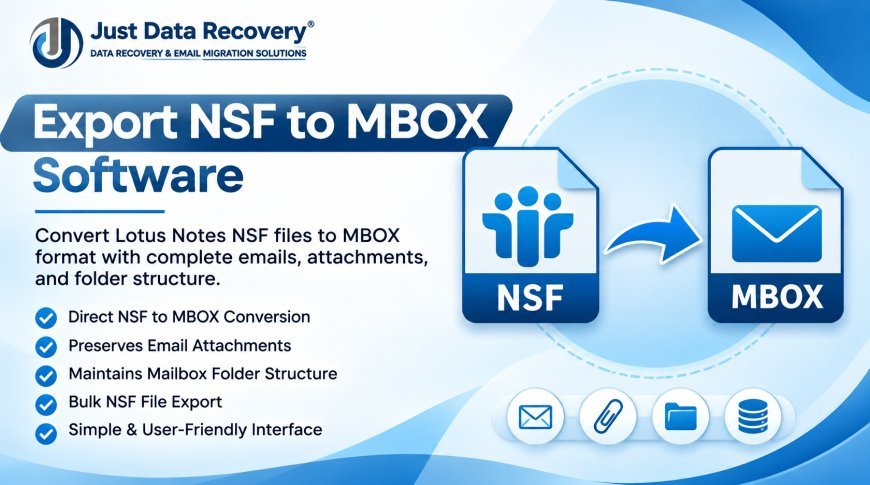
Planning to migrate your Lotus Notes emails to an MBOX-compatible email application? Choosing the right NSF to MBOX migration tool can make the process easier, especially when working with large mailboxes, multiple NSF databases, and important business email archives.
NSF files store email and other information in IBM Lotus Notes, now associated with HCL Notes. MBOX is a widely used mailbox format supported by several email applications, including Mozilla Thunderbird. Converting NSF data into MBOX can help users move their email communication into a different email environment.
In this guide, we explain what an NSF to MBOX migration tool does, why users need one, which features to evaluate, and how to complete the migration process safely.
What Is an NSF to MBOX Migration Tool?
An NSF to MBOX migration tool is software designed to convert email data from Notes Storage Facility (NSF) databases into MBOX mailbox files.
The tool helps users prepare Lotus Notes email data for use in MBOX-compatible email clients. Depending on the software, it may provide options to select NSF files, preview mailbox contents, choose folders, and export emails into MBOX format.
This type of utility can be useful for:
-
Individual users changing email platforms
-
Organizations migrating historical email archives
-
IT administrators managing mailbox migration
-
Businesses maintaining old Lotus Notes databases
-
Users who want to access archived emails through an MBOX-compatible application
Why Do Users Need an NSF to MBOX Migration Tool?
Moving emails manually between different email platforms can be complicated. A dedicated migration utility may simplify the process and reduce repetitive work.
1. Easier Email Migration
A dedicated tool can provide a guided workflow for selecting NSF files, scanning mailbox data, choosing folders, and exporting emails.
This can make migration more manageable for users who do not have extensive technical knowledge of Lotus Notes databases.
2. Access to Emails in MBOX-Compatible Applications
Users may want to move historical email communication into an application that supports MBOX files.
Converting NSF emails into MBOX prepares the mailbox data for an appropriate import workflow in applications such as Mozilla Thunderbird.
3. Better Management of Large Mailboxes
Large NSF databases can contain years of communication and numerous attachments. A converter with large-file and batch-processing support, where available, can help users manage the migration process more efficiently.
4. Reduced Manual Effort
Manual export and migration can involve multiple steps. A dedicated utility may bring important conversion operations together in one interface.
5. Selective Email Export
Some migration tools allow users to select specific folders rather than converting an entire database. This can be helpful when only particular projects, departments, or email archives need to be migrated.
Important Features to Look for in an NSF to MBOX Migration Tool
Not all NSF converters offer identical capabilities. Before selecting a product, evaluate the following features.
1. NSF File Compatibility
The first requirement is compatibility with your source NSF databases.
Check whether the software supports the NSF files you need to migrate, including the relevant file versions and database conditions.
2. Bulk NSF Conversion
Organizations may need to migrate multiple NSF files. A tool with batch conversion support can help process several databases through a single workflow.
Check whether the software imposes file-count or size limitations.
3. Email Preview
A preview option allows users to inspect mailbox contents before conversion.
Depending on the product, this may include email subjects, sender and recipient information, dates, message bodies, and attachments.
Previewing data can help confirm that the correct mailbox and folders have been selected.
4. Attachment Handling
Business emails frequently contain important attachments, including invoices, reports, PDFs, images, and spreadsheets.
Check whether the migration tool exports attachments with their associated messages. Test different attachment types before performing a complete migration.
5. Folder Structure Preservation
Email folders help users organize communication by client, project, department, or subject.
Look for software that supports folder selection and preservation of the mailbox hierarchy, where available.
6. Large NSF Database Support
Large databases may require additional processing time and storage space.
Check the product's published file-size limitations, system requirements, and recommendations for handling large NSF databases.
7. User-Friendly Interface
A straightforward interface can make migration easier for both technical and non-technical users.
Look for clear file-selection options, understandable instructions, progress indicators, and useful error messages.
8. Technical Support and Trial Availability
A free trial, if available, allows users to test the software before purchasing.
Technical documentation and support can also be valuable when dealing with large or complex email archives.
How to Migrate NSF Files to MBOX Using Professional Software
The following is a general workflow. Exact options and menu names depend on the selected NSF to MBOX migration tool.
Step 1: Prepare the NSF Database
Locate the NSF file that contains the required email data. Create a backup before starting the migration.
Step 2: Install the Migration Tool
Download the selected software from its official source. Review its system requirements and compatibility information.
Step 3: Add the NSF File
Open the application and use its file-selection option to browse for the NSF database.
If batch processing is supported, add multiple NSF files as required.
Step 4: Scan the Database
Start the scanning process. Allow the software to examine the NSF database and display the available mailbox data, if supported.
Step 5: Preview and Select Email Folders
Review the available folders and select the emails you want to migrate. Use preview functionality, if available, to inspect representative messages.
Step 6: Select MBOX as the Output Format
Choose MBOX as the destination format and specify where the converted files should be saved.
Step 7: Start the Migration
Begin the conversion process. Avoid interrupting the application while it is processing the source database.
Step 8: Verify the Exported Data
After conversion, inspect the output folder. Open the MBOX files using a compatible email application or import method.
Check message content, attachments, and folder organization before considering the migration complete.
How to Import MBOX Files into Thunderbird
After converting NSF emails into MBOX, users may want to access them through Mozilla Thunderbird.
A general import workflow is:
-
Install or open Mozilla Thunderbird.
-
Check the import options available in your Thunderbird version.
-
Select a compatible MBOX import method or extension if required.
-
Choose the converted MBOX file.
-
Complete the import process.
-
Review the imported messages and folders.
The exact procedure can vary by Thunderbird version and installed extensions.
Important: MBOX conversion primarily handles email messages. Lotus Notes contacts, calendars, tasks, and other database information may require separate migration procedures.
Common NSF to MBOX Migration Problems and Solutions
| Problem | Possible reason | Recommended action |
|---|---|---|
| NSF file is not detected | Incorrect file path or access restrictions | Check the file location and permissions |
| Conversion takes too long | Large database or extensive attachments | Allow more processing time and check system resources |
| Not enough storage | Insufficient destination space | Free up disk space or choose another drive |
| Missing email messages | Source database condition or conversion limitations | Compare source and output folders |
| Attachments are unavailable | Attachment export limitations | Test the tool with sample messages |
| MBOX import fails | Incompatible import method | Check the destination application's version and import requirements |
Best Practices for Safe NSF to MBOX Migration
Follow these recommendations to help protect your email data:
-
Back up original NSF files: Never rely on the converted files as your only copy.
-
Test before bulk migration: Convert a representative sample before processing all databases.
-
Check available storage: Make sure sufficient disk space is available.
-
Verify attachments: Open selected messages and inspect their attachments.
-
Review folder organization: Confirm that important folders are available after conversion.
-
Keep migration records: Document the source files, output locations, and verification results.
-
Retain the original databases: Keep the source NSF files until the migration has been checked and approved.
How to Choose the Right NSF to MBOX Migration Software
Before purchasing, compare products based on practical requirements rather than marketing claims alone.
| Evaluation factor | What to verify |
|---|---|
| File compatibility | Supported NSF versions and database conditions |
| Bulk conversion | Multiple-file processing options |
| Large database support | Published file-size limits |
| Attachments | Whether attachments are exported |
| Folder structure | Support for preserving mailbox organization |
| Preview | Ability to inspect emails before conversion |
| Ease of use | Clear interface and guided workflow |
| Trial version | Availability of testing before purchase |
| Customer support | Documentation and technical assistance |
The best tool is the one that matches your source database, migration requirements, operating environment, and destination email application.
Frequently Asked Questions
1. What does an NSF to MBOX migration tool do?
It converts email data from Lotus Notes NSF databases into MBOX files so that users can prepare their emails for import into MBOX-compatible applications.
2. Can I migrate multiple NSF files to MBOX?
Yes, some professional tools support bulk NSF to MBOX conversion. Check the selected product's specifications for batch-processing limits.
3. Can I convert large NSF databases?
Some tools support large NSF databases. However, file-size limitations, system requirements, and processing performance vary by product.
4. Will the migration tool preserve email attachments?
Attachment handling depends on the software. Test the conversion with representative messages and verify the exported attachments.
5. Can I migrate NSF emails to Thunderbird?
Yes. You can convert the email data into MBOX and then import the resulting files into Thunderbird using a compatible import method.
6. Does NSF to MBOX conversion include contacts and calendars?
Not necessarily. MBOX is primarily an email mailbox format. Contacts, calendars, and other Notes data may require separate migration methods.
Conclusion
An NSF to MBOX migration tool can simplify the process of moving Lotus Notes email data into an MBOX-compatible email environment. Features such as bulk conversion, email preview, attachment handling, folder selection, and large-database support can make the migration workflow more manageable, where supported.
Before choosing a solution, verify NSF compatibility, test the software with sample data, and check the exported MBOX files carefully. A reliable migration process should protect the original database and confirm that important email messages remain accessible after conversion.
What's Your Reaction?
 Like
0
 Dislike
0
 Love
0
 Funny
0
 Angry
0
 Sad
0
 Wow
0