
























Sync Contact Form 7 with Google Sheets in 5 Minutes
Sync Contact Form 7 with Google Sheets in 5 minutes. Follow this step-by-step guide to connect your form, map fields, and test submissions.

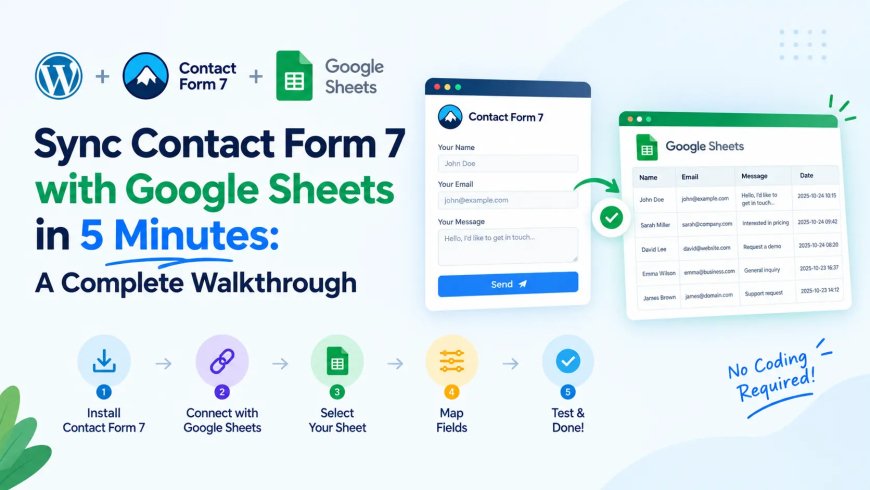
Sync Contact Form 7 with Google Sheets in 5 Minutes: A Complete Walkthrough
Do you want to sync Contact Form 7 with Google Sheets without manually copying every form submission? With the right WordPress plugin, you can connect your contact form to a spreadsheet and automatically organize incoming enquiries in one place.
Contact Form 7 is widely used to create contact forms on WordPress websites. However, its default workflow focuses on email notifications rather than providing a built-in spreadsheet for managing every submission. When enquiries increase, searching through emails and transferring information manually can become time-consuming.
A Google Sheets connector solves this problem by sending configured form data directly to a spreadsheet. You can then review enquiries, filter records, share information with your team, and track follow-ups.
In this guide, you will learn how to connect Contact Form 7 to Google Sheets using GSheetConnector, configure your spreadsheet, and verify that submissions are syncing correctly.
Quick answer: Install a compatible Contact Form 7 Google Sheets connector, authenticate your Google account, connect your spreadsheet, configure the form fields, and submit a test entry. Once the setup is complete, new submissions can be synchronized automatically.
What You Need Before Getting Started
Before connecting Contact Form 7 to Google Sheets, make sure you have:
-
A WordPress website with Contact Form 7 installed and activated.
-
At least one working Contact Form 7 form.
-
A Google account with access to the destination spreadsheet.
-
WordPress administrator access to install and configure the connector.
-
A Google spreadsheet ready to receive your form data.
You can use the free GSheetConnector plugin for a basic integration. Some configuration options, including automatic spreadsheet selection and advanced feed management, depend on the version you use.
The five-minute estimate assumes that your form and Google account are ready and that authentication proceeds without errors. First-time authentication or manual Google API configuration may take longer.
How to Sync Contact Form 7 with Google Sheets in 5 Minutes
Step 1: Create Your Google Spreadsheet
Estimated time: 1 minute
Open Google Sheets and create a new spreadsheet. Give it a recognizable name, such as Website Contact Form Leads.
Add a header row that matches the information you want to collect from your Contact Form 7 form.
For example:
| Name | Subject | Message | |
|---|---|---|---|
| Example User | user@example.com | Service enquiry | Requesting more information |
These values are illustrative examples, not real customer data.
Keep the column names clear and consistent with your form fields. If you plan to manage sales enquiries, you can also add columns such as Lead Status, Assigned To, and Follow-Up Date.
Save the spreadsheet and keep it available for the next step.
Step 2: Install the Contact Form 7 Google Sheets Connector
Estimated time: 1 minute
Log in to your WordPress dashboard.
-
Navigate to Plugins → Add New Plugin.
-
Search for
CF7 Google Sheet Connector. -
Find the compatible GSheetConnector plugin.
-
Click Install Now and then Activate.
The connector provides the integration between Contact Form 7 and Google Sheets, so you do not need to build a custom API connection yourself.
After activation, open your Contact Form 7 form settings and look for the Google Sheets integration tab.
You can find the plugin and its available features on the official Contact Form 7 Google Sheets Connector page.
Step 3: Connect Your Google Account
Estimated time: 1 minute, if authentication is ready
Before form data can be sent to Google Sheets, the connector needs permission to access the relevant Google resources.
Open the integration settings and follow the authentication instructions for your selected connection method.
Depending on your plugin version and configuration, the process may involve authorizing an existing Google connection, configuring manual OAuth credentials, or setting up a service account.
Complete the requested authorization steps and confirm that the integration shows a connected status.
If you use a service account, make sure the destination spreadsheet is shared with the service account's email address and that it has the required editing permissions.
For a basic setup, choose the supported authentication method that fits your needs rather than configuring an advanced method unnecessarily.
Step 4: Connect Your Contact Form to the Spreadsheet
Estimated time: 1 minute
In your WordPress dashboard, navigate to Contact → Contact Forms and edit the form you want to connect.
Open the relevant Google Sheets integration tab.
With the Pro version, you can generally select an available spreadsheet and worksheet from the configuration interface. If you use the free version, you may need to enter the spreadsheet and tab details manually.
For manual configuration, check that you have the correct:
-
Spreadsheet name
-
Spreadsheet ID
-
Worksheet or tab name
-
Tab ID, where required
Next, configure the fields that should be synchronized. For example, map the name field to Name, the email field to Email, and the message field to Message.
The field mapping must match the structure of your spreadsheet. Review the configuration carefully before saving it.
Once the settings are saved, the connector is ready for testing.
Step 5: Submit a Test Entry
Estimated time: 1 minute
Open the page where your Contact Form 7 form is published.
Enter test information that you control and submit the form. Then open your Google spreadsheet and check whether the new submission appears in the expected row and columns.
Verify that:
-
The test submission appears in the correct spreadsheet.
-
Each field is stored in the correct column.
-
The information matches what you submitted.
-
The form displays its expected success or error message.
-
The connector reports no obvious synchronization errors.
If the submission appears correctly, your basic integration is working.
Important: A successful form submission does not necessarily prove that the spreadsheet synchronization succeeded. Always check the destination sheet rather than relying only on the message shown on your website.
What Happens After Contact Form 7 Is Connected to Google Sheets?
Once configured and tested, the integration can automatically send new submissions to your spreadsheet. You no longer need to copy each enquiry from an email into a separate tracking document.
Here are a few practical ways to use the connection.
Manage leads in one spreadsheet
Each incoming submission can become a separate record. You can filter by service, sort by submission date, or search for a specific email address.
Track follow-ups
Add a Lead Status column with options such as New, Contacted, Qualified, Won, and Lost. A Follow-Up Date column can help your team identify which enquiries need a response.
Share enquiries with your team
Google Sheets allows authorized colleagues to review and update lead records without forwarding individual email notifications. Review sharing permissions carefully because form submissions may contain personal information.
Create basic lead reports
You can use spreadsheet formulas, filters, and pivot tables to count enquiries, compare service interests, and review the progress of leads through your sales process.
These features turn a simple form integration into a useful starting point for lead management.
Free vs. Pro: Which Contact Form 7 Google Sheets Connector Should You Use?
The right option depends on how you manage forms and spreadsheets.
The free version can be sufficient if you need a straightforward connection and are comfortable configuring the spreadsheet details manually.
The Pro version is worth considering if you need features such as automatic spreadsheet selection, multiple feeds, advanced field mapping, conditional synchronization, or additional entry-management options.
Before choosing a version, check the current feature comparison and confirm that the functionality you need is included in your selected plan.
For a single contact form on a small website, start with the simplest configuration that meets your requirements. You can expand the setup later if your workflow becomes more complex.
Troubleshooting: Why Are Contact Form 7 Submissions Not Appearing in Google Sheets?
If your test submission does not appear in the spreadsheet, check these common causes.
Google account is disconnected. Revisit the integration settings and confirm that authentication is still valid.
Incorrect spreadsheet details. Check the spreadsheet ID, tab name, and tab ID when using manual configuration.
Field mapping does not match. Verify that your form fields and spreadsheet columns are configured correctly.
Spreadsheet permissions are insufficient. Confirm that the authenticated account or service account can edit the destination spreadsheet.
Form or integration errors. Submit another test entry and inspect any available connector diagnostics or logs. Check that Contact Form 7 itself is processing the submission correctly.
If the problem persists, consult the connector's documentation or support resources before relying on the integration for important business enquiries.
Frequently Asked Questions
Can I sync Contact Form 7 with Google Sheets for free?
Yes. A free GSheetConnector option is available for basic Contact Form 7 to Google Sheets synchronization. Some advanced features and configuration options require Pro, so check the current feature comparison before installing.
Does Contact Form 7 connect to Google Sheets automatically?
No. Contact Form 7 does not provide a native Google Sheets connection by default. You need a compatible connector plugin or a custom integration to transfer submissions to a spreadsheet.
How long does it take to connect Contact Form 7 to Google Sheets?
A basic setup can take around five minutes when the form, spreadsheet, and Google account are ready. First-time authentication, manual API configuration, or troubleshooting can increase the setup time.
Will new Contact Form 7 submissions appear in Google Sheets automatically?
Yes, once the connector has been configured and tested successfully, new submissions can be synchronized automatically. Periodically verify that the integration is still working as expected.
Can I connect multiple Contact Form 7 forms to Google Sheets?
Yes, depending on the connector version and configuration. Advanced feed management can allow different forms to send submissions to different spreadsheets or worksheet tabs.
What happens to submissions collected before I install the connector?
Do not assume that historical submissions will be imported automatically. Contact Form 7 does not provide a built-in submissions database by default. If you have an existing entry-storage plugin or another record of past enquiries, you may need to export or migrate those records separately.
Final Thoughts
Connecting Contact Form 7 to Google Sheets is a practical way to automate form-data collection and simplify lead management on WordPress.
With a compatible connector, you can prepare a spreadsheet, authenticate your Google account, configure your form, and verify the integration without writing custom API code. Once everything is working, new enquiries can be organized automatically, giving you more time to focus on responding to potential customers.
Start with one form and one spreadsheet, test the complete workflow, and expand your setup only when you need additional features. A few minutes of configuration can eliminate a repetitive manual task from your everyday workflow.
What's Your Reaction?
 Like
0
Like
0
 Dislike
0
Dislike
0
 Love
0
Love
0
 Funny
0
Funny
0
 Angry
0
Angry
0
 Sad
0
Sad
0
 Wow
0
Wow
0