



























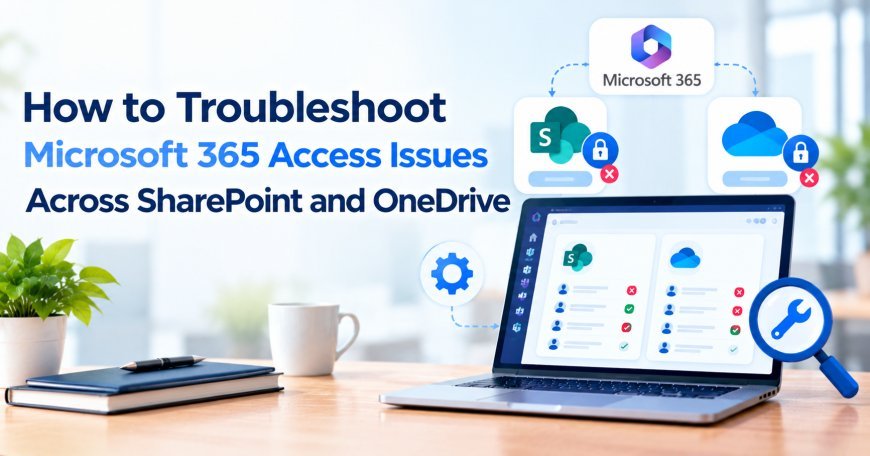
How to Troubleshoot Microsoft 365 Access Issues Across SharePoint and OneDrive
Troubleshoot Microsoft 365 access issues across SharePoint and OneDrive with practical steps to resolve permissions, login errors, and sync problems.
Microsoft 365 supports millions of businesses across the world. Microsoft reports that Microsoft 365 commercial subscriptions have reached hundreds of millions of paid seats. SharePoint and OneDrive form an important part of this environment. They help teams store, share, manage, and collaborate on business files. Permission problems can become serious as organizations grow. Users may suddenly lose access to files. Some users may see folders they should not access. Others may receive access denied errors. These issues often result from inherited permissions, group membership, sharing links, or conflicting access rules.
SharePoint and OneDrive use several permission layers. These layers include Microsoft Entra ID identities, Microsoft 365 groups, SharePoint groups, site permissions, library permissions, folder permissions, and file sharing. Microsoft 365 administrators need to understand these layers before changing permissions. A quick permission change can create a larger security problem. Microsoft 365 Consulting Services can help organizations review these permission structures. A skilled Microsoft 365 Consulting Company can also identify access conflicts and create safer permission models.
Understanding Microsoft 365 Permissions
SharePoint and OneDrive use different access models. However, both systems rely heavily on Microsoft 365 identity and permission controls.
SharePoint Permission Structure
SharePoint permissions can exist at several levels.
These levels include:
-
Microsoft 365 group
-
SharePoint site
-
Document library
-
Folder
-
File
-
SharePoint group
-
Individual user
-
External sharing link
A user can receive access through more than one path.
For example, a user may belong to a Microsoft 365 group. That group may have Member access to a SharePoint site. The user may also receive direct access to one specific file.
This creates multiple permission paths.
OneDrive Permission Structure
OneDrive for Business uses a personal storage model for each user.
Users can share files and folders with colleagues. They can also create links with different access levels.
Common access options include:
-
Specific people
-
People in the organization
-
Anyone with the link
-
View access
-
Edit access
Administrators must understand these options before investigating access problems.
Common Microsoft 365 Permission Problems
User Cannot Open a File
A user may receive an access denied message.
Several causes can create this issue.
The user may lack permission. The file may have unique permissions. A sharing link may have expired. The user may also use the wrong Microsoft account.
User Can Open a Folder but Not a File
This situation often points toward unique file permissions.
The folder may provide access to the user. The individual file may have different permissions.
Administrators should check the file's permission settings.
User Sees Files They Should Not See
This problem often involves group membership or inherited permissions.
The user may belong to a group that has access to the content.
Administrators should check all permission paths before removing access.
External User Cannot Access Shared Content
External access can fail for several reasons.
The organization may block external sharing. The site may have stricter sharing settings. The invitation may also use a different email address.
Administrators should verify tenant, site, and item-level sharing settings.
Step 1: Confirm the User Identity
Start every permission investigation with identity verification.
Check the account that the user uses to access Microsoft 365.
The same person may have several accounts.
For example, a user may have:
-
Work account
-
Personal Microsoft account
-
Guest account
-
Former employee account
The shared link may target a different identity.
Ask the user to sign out and sign in with the correct organizational account.
Step 2: Check Microsoft Entra ID Groups
Microsoft Entra ID groups often control SharePoint access.
Check whether the user belongs to relevant groups.
Review:
-
Direct group membership
-
Dynamic group membership
-
Nested groups
-
Security groups
-
Microsoft 365 groups
A user can inherit access through group membership.
Removing direct file access will not solve the problem if another group still grants access.
Step 3: Check SharePoint Site Permissions
Open the affected SharePoint site and review site permissions.
Check the main permission groups.
Typical SharePoint groups include:
-
Owners
-
Members
-
Visitors
Owners usually have full control. Members often receive edit access. Visitors normally receive read access.
Organizations can create custom groups.
Administrators should identify the group that grants the affected user access.
Step 4: Check Library Permissions
Document libraries can have different permissions from the main site.
This happens when administrators break permission inheritance.
A library may provide broader or narrower access.
Check whether the library inherits permissions from the parent site.
If inheritance stops, review the library's unique permissions.
Why Broken Inheritance Causes Problems
Permission inheritance makes administration easier.
Breaking inheritance creates a separate permission layer.
Too many unique permissions can make access management difficult.
Administrators should avoid creating unique permissions without a clear reason.
Step 5: Check Folder and File Permissions
Next, inspect the specific folder or file.
SharePoint allows unique permissions at the item level.
A folder can inherit permissions from its library. A file can inherit permissions from its folder.
Administrators can also stop inheritance.
Check the permission status before making changes.
Use the Permission Check Tool
SharePoint provides permission checking features for administrators.
Use these tools to understand why a user receives access.
The goal is to identify the permission source.
Do not remove permissions until you understand that source.
Step 6: Review Sharing Links
Sharing links create another common permission problem.
A file can have several active links.
Different links may have different access settings.
For example:
-
One link may allow viewing.
-
Another may allow editing.
-
One may work only for selected users.
-
Another may allow broader organizational access.
Review existing links when users report unexpected access.
Delete outdated links when appropriate.
Step 7: Check OneDrive Sharing Settings
OneDrive has its own sharing controls.
Users can share files with specific people or groups.
Administrators should check the sharing configuration.
Review:
-
Link type
-
Permission level
-
Expiration settings
-
External sharing
-
Blocked users
-
Organization sharing policy
A user may have a valid link but still face access restrictions.
Step 8: Review Microsoft 365 Sharing Policies
Tenant-level settings can affect SharePoint and OneDrive.
Microsoft 365 administrators should review organization-wide sharing policies.
Important settings can control:
-
External sharing
-
Anonymous links
-
Guest access
-
Link expiration
-
Default link permissions
-
Domain restrictions
A tenant policy can override what users expect at the site level.
Step 9: Check Conditional Access Policies
Conditional Access can block users even when SharePoint permissions look correct.
Microsoft Entra Conditional Access can consider factors such as:
-
User identity
-
Device state
-
Location
-
Application
-
Risk
-
Authentication method
For example, a user may access SharePoint from a managed laptop. The same user may receive a block from an unmanaged device.
This can appear like a SharePoint permission problem.
Administrators should review sign-in and Conditional Access results.
Step 10: Check Microsoft 365 Group Membership
SharePoint team sites often connect with Microsoft 365 Groups.
Group membership can grant access to the connected SharePoint site.
If a user joins the group, access can appear automatically.
If a user leaves the group, access can disappear.
Administrators should review group membership before changing individual SharePoint permissions.
Step 11: Review Guest Access
Guest accounts require special attention.
A guest can have access through several methods.
For example, a guest may receive access through:
-
Direct file sharing
-
SharePoint group membership
-
Microsoft 365 group membership
-
Guest invitation
-
Sharing link
The guest may also use a different account than expected.
Check the guest identity in Microsoft Entra ID.
Step 12: Fix Inheritance Problems
Permission inheritance provides a predictable access structure.
A standard structure can look like this:
Site → Library → Folder → File
Each level normally inherits access from its parent.
Problems occur when administrators break inheritance without documentation.
Restore Inheritance When Appropriate
Restoring inheritance can simplify permission management.
However, administrators should first confirm the intended access model.
Restoring inheritance can remove unique permissions.
Always review the expected access before making this change.
Step 13: Remove Conflicting Permissions
A user can receive access from several sources.
For example:
-
Group A grants edit access.
-
Group B grants read access.
-
Direct permission grants edit access.
Removing Group B will not remove edit access.
Administrators should identify every access path.
This approach prevents incomplete fixes.
Step 14: Use Least Privilege
Users should receive only the access required for their work.
For example, a user who only reads reports should not receive edit access.
Use appropriate permission levels.
Common levels include:
-
Read
-
Contribute
-
Edit
-
Full Control
Avoid giving Full Control to normal users.
This reduces accidental changes and security risks.
Step 15: Fix Permission Problems with PowerShell
Large environments often need automation.
Microsoft provides PowerShell modules for Microsoft 365 administration.
Administrators can use scripts to review and manage SharePoint permissions.
PowerShell can help with tasks such as:
-
Listing site permissions
-
Reviewing groups
-
Checking users
-
Managing SharePoint sites
-
Reporting permission structures
-
Automating repetitive tasks
Automation becomes useful when an organization has hundreds of sites.
Administrators should test scripts in a controlled environment.
Step 16: Use Microsoft 365 Audit Data
Audit information can help explain permission changes.
Administrators can investigate events such as:
-
File sharing
-
Permission changes
-
Group changes
-
File access
-
External sharing
Audit data helps identify when a problem started.
It can also show which account performed a relevant action.
Example: SharePoint File Access Problem
Consider an employee who cannot access a project document.
The document belongs to a SharePoint library.
The employee has access to the site.
However, the file has unique permissions.
The administrator checks the file permissions and finds that inheritance stopped.
The administrator restores the correct inheritance.
The employee can then access the file.
The important lesson involves permission scope.
Site access does not always guarantee file access.
Example: User Has Unexpected Edit Access
Consider another employee who should only view financial reports.
The employee has Read access through the Visitors group.
However, the employee also belongs to a Microsoft 365 group.
That group has Edit access to the same site.
The employee therefore receives Edit access.
The administrator removes the unnecessary group membership.
The employee then retains only the required Read access.
This example shows why administrators must check all access paths.
How to Prevent Future Permission Problems
Permission management should become an ongoing process.
Create a Clear Permission Model
Organizations should define who can access each type of content.
For example:
-
Public business content
-
Internal team content
-
Confidential content
-
Financial content
-
Executive content
Each category should have clear access rules.
Use Groups Instead of Direct Permissions
Group-based access simplifies administration.
Instead of assigning permissions to individual users, create appropriate groups.
When employees change roles, administrators can update group membership.
This reduces manual permission changes.
Document Unique Permissions
Every exception should have a clear reason.
Document:
-
Why inheritance was broken
-
Who received access
-
What permission level applies
-
Who approved the change
-
When the permission should expire
Documentation makes future troubleshooting easier.
Best Practices for SharePoint and OneDrive Permissions
Organizations should follow these practices:
-
Use group-based permissions.
-
Apply least privilege.
-
Review external access regularly.
-
Avoid unnecessary unique permissions.
-
Remove outdated sharing links.
-
Review guest accounts.
-
Monitor permission changes.
-
Use strong identity controls.
-
Test Conditional Access policies.
-
Document permission exceptions.
-
Audit sensitive sites regularly.
-
Use automation for large environments.
Role of Microsoft 365 Consulting Services
Microsoft 365 Consulting Services can help businesses identify and correct complex permission problems.
Consultants can review the complete Microsoft 365 environment.
Their work can include:
-
SharePoint permission audits
-
OneDrive access reviews
-
Microsoft Entra ID analysis
-
Group structure reviews
-
External sharing audits
-
Conditional Access analysis
-
Security configuration
-
PowerShell automation
-
Permission cleanup
-
Governance planning
A structured audit can reveal permission paths that administrators may miss.
Choosing a Microsoft 365 Consulting Company
A Microsoft 365 Consulting Company should understand SharePoint, OneDrive, Microsoft Entra ID, Microsoft 365 Groups, and security controls.
Look for experience with enterprise permission management.
The company should also understand automation and governance.
Technical Expertise
The team should understand inheritance, permission levels, groups, sharing links, and identity controls.
Security Experience
The team should know how permissions affect data security.
Migration Experience
Permission issues often appear during Microsoft 365 migrations.
An experienced team should understand migration-related permission problems.
Automation Skills
PowerShell and Microsoft Graph knowledge can help manage large environments.
Conclusion
Microsoft 365 permission problems can come from many layers. SharePoint sites, libraries, folders, files, groups, sharing links, OneDrive settings, and Microsoft Entra ID can all affect access. The best troubleshooting method starts with identity verification. Administrators should then trace every permission path. They should review groups, inheritance, sharing links, Conditional Access, and tenant policies.
Organizations should avoid quick permission changes without understanding the root cause. Such changes can create unexpected access or security gaps. A clear permission model can reduce future problems. Group-based access, least privilege, documentation, regular audits, and automation can improve long-term management. Microsoft 365 Consulting Services can help organizations audit and correct complex access structures. A skilled Microsoft 365 Consulting Company can also create governance practices that keep SharePoint and OneDrive permissions organized.
What's Your Reaction?
 Like
0
Like
0
 Dislike
0
Dislike
0
 Love
0
Love
0
 Funny
0
Funny
0
 Angry
0
Angry
0
 Sad
0
Sad
0
 Wow
0
Wow
0