



















IPTV on Fire TV Stick: What to Check Before You Start
Viking IPTV offers IPTV subscription options for viewers in Sweden and across the Nordic region. The service focuses on live television, sports, movies, series, and international entertainment, with different plans available for varying viewing needs.

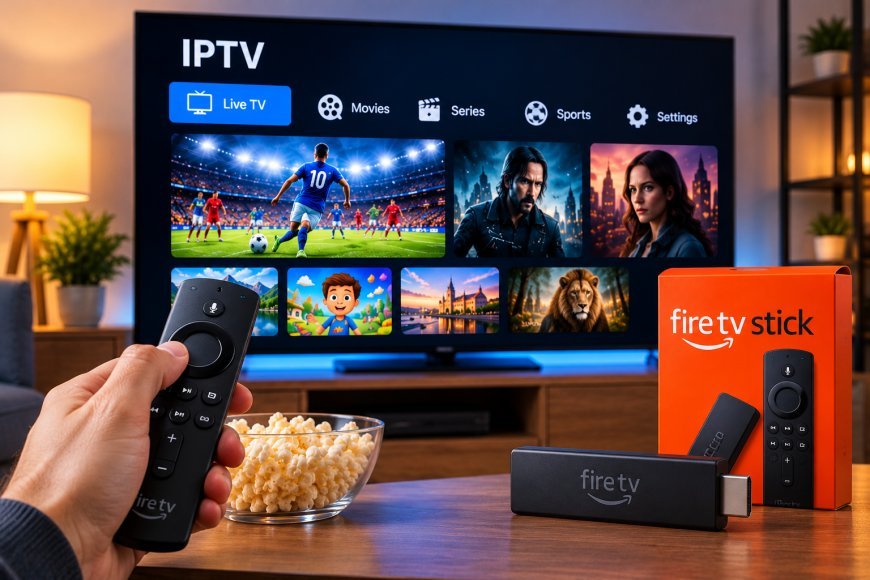
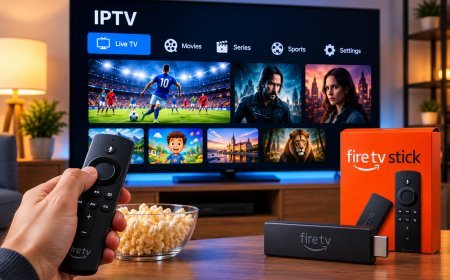
Amazon Fire TV Stick is a popular streaming device for people who want to add apps and online entertainment to a television without replacing the TV itself. Its compact size, HDMI connection, Wi-Fi support, and app-based interface make it suitable for many types of streaming, including IPTV when a compatible player and legitimate service are used.
A good IPTV experience on Fire TV Stick depends on more than installing an application. Device generation, available storage, Wi-Fi quality, app compatibility, and subscription connection rules can all influence performance.
Understanding these factors before setup can make IPTV easier to use and troubleshoot.
How IPTV Works on Fire TV Stick
An IPTV player acts as the interface between the streaming device and the IPTV service.
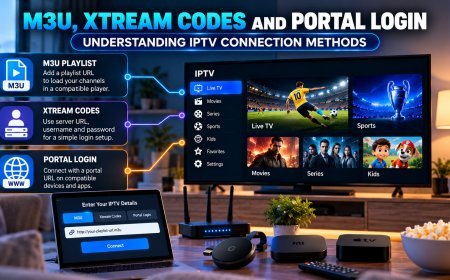
Depending on the player and provider, users may be asked to enter information such as:
-
Username and password
-
Server address
-
M3U playlist
-
Portal details
-
Other supported account credentials
Once configured, the player can organize available live channels and on-demand content into categories.
The IPTV player and IPTV service should not automatically be treated as the same product. A player is generally the software used to access and organize streams provided through a compatible service.
Check Your Fire TV Model
Amazon has released several generations of Fire TV devices, and performance can vary between them.
Newer models generally have more capable hardware and may handle modern streaming applications more smoothly than older devices.
Before setting up IPTV, check:
-
Fire OS version
-
Available storage
-
Supported video resolution
-
Wi-Fi capabilities
-
App compatibility
An older device may still work for basic streaming, but heavier applications and large playlists can require more processing power and memory.
Choose a Compatible IPTV Player
Not every IPTV application is designed for Fire TV.
The ideal player should provide an interface that works well with the Fire TV remote and supports the login method supplied by the IPTV service.
Useful features may include:
Channel Categories
Categories make large channel lists easier to navigate.
Favorites
Users can save frequently watched channels instead of searching for them each time.
EPG Support
An Electronic Program Guide can display current and upcoming television schedules when suitable guide data is available.
Search
Search tools help users locate channels, movies, or series quickly.
Playlist Management
Some players allow users to organize multiple playlists or content groups.
A simple, responsive application can often provide a better experience than an app overloaded with features the user never needs.
Make Sure You Have Enough Storage
Fire TV devices have limited internal storage.
Applications, cached data, updates, and downloaded files can gradually reduce the amount of free space.
Low storage may contribute to:
-
Slow app launches
-
Installation problems
-
Failed updates
-
Interface lag
-
Reduced overall responsiveness
Removing unused applications and unnecessary files can help maintain better performance.
Wi-Fi Strength Matters
IPTV relies on continuous internet delivery, making network quality especially important.
A Fire TV Stick is often positioned behind the television, where the TV itself or nearby furniture may weaken wireless reception.
If buffering occurs, check the Wi-Fi signal near the television rather than relying only on the internet speed measured beside the router.
Improve Router Placement
Router placement can have a noticeable effect on streaming performance.
Try to keep the router:
-
In an open area
-
Away from large metal objects
-
Away from enclosed cabinets
-
Reasonably close to the streaming device
If the television is located far from the router, a mesh Wi-Fi system or another suitable network solution may provide better coverage.
Consider Ethernet for a Stable Connection
Some Fire TV setups can use Ethernet through a compatible adapter.
A wired connection can reduce wireless interference and may provide more consistent performance for stationary streaming devices.
Ethernet may be useful when:
-
Wi-Fi is congested
-
The television is far from the router
-
Several household devices stream simultaneously
-
Wireless performance varies during the day
However, a good Wi-Fi connection can still work well for many households.
Understand Video Quality Requirements
Higher-resolution video normally requires more bandwidth and device resources.
A Fire TV Stick connected to a 4K television does not guarantee that every IPTV stream will be available in 4K.
Final picture quality depends on:
-
Stream source
-
IPTV application
-
Fire TV model
-
Television capabilities
-
Network performance
Choosing a stable resolution is usually more important than simply selecting the highest available setting.
Avoid Overloading Your Home Network
IPTV may share the same internet connection with many other devices.
Examples include:
-
Smartphones
-
Computers
-
Gaming consoles
-
Tablets
-
Smart cameras
-
Other televisions
Large downloads, online gaming, cloud backups, and simultaneous video streams can all consume bandwidth.
If IPTV performs well at some times but buffers at others, network congestion may be part of the problem.
Keep Fire TV Software Updated
Fire OS updates can improve compatibility, security, and stability.
Users should also keep their IPTV player updated when official updates are available.
Updates may help resolve:
-
App crashes
-
Playback errors
-
Navigation problems
-
Login issues
-
Compatibility problems
Restarting the Fire TV device after significant updates can also help refresh the system.
Use the Fire TV Remote Efficiently
A player designed for television use should be easy to operate with directional controls.
Users should be able to reach common features without complicated menus.
Helpful remote-friendly functions include:
-
Channel switching
-
Search
-
Favorites
-
Program guide
-
Category selection
-
Playback controls
Testing navigation before relying on an app every day can prevent frustration later.
Organize Favorites Early
Large channel lists can quickly become difficult to manage.
Creating a favorites list as soon as the player is configured can simplify everyday viewing.
Users might organize frequently watched content around:
-
Sports
-
News
-
Movies
-
Nordic channels
-
International channels
-
Family entertainment
Some players also allow custom groups, making navigation even more efficient.
Check EPG Settings
If the IPTV service provides compatible schedule data, an EPG can make Fire TV viewing easier.
A guide can display what is currently playing and what is scheduled next.
If the EPG appears empty or shows incorrect times, check:
-
Device date and time
-
Timezone settings
-
EPG refresh options
-
Playlist configuration
Schedule problems are not always related to the video stream itself.
Restart the Device When IPTV Becomes Slow
Temporary performance problems can sometimes be solved with a simple restart.
If the IPTV application begins freezing or loading slowly:
-
Close the application.
-
Restart the Fire TV Stick.
-
Restart the router if network problems are also present.
-
Open the app again.
This can clear temporary memory and network issues.
Clear Unnecessary App Data Carefully
Cached data can accumulate over time.
Fire TV settings allow users to inspect app storage and clear cache where appropriate.
Clearing cache may help when an application behaves unusually. However, clearing all application data can remove login details and settings, so users should understand the difference before selecting that option.
Compare IPTV Services With Your Device in Mind
Not every IPTV setup is equally suitable for every streaming device.
Before subscribing, users should check:
-
Supported login methods
-
Fire TV compatibility
-
Connection limits
-
Setup documentation
-
Available content categories
-
Customer support options
People researching IPTV services aimed at Sweden and Nordic viewers can review VIKING IPTV as part of their comparison while considering whether the available setup options match their Fire TV device and viewing preferences.
Be Careful With Unknown Applications
Users should avoid installing applications from unfamiliar sources without understanding what they are downloading.
Streaming devices contain account information and connect directly to the home network, so basic security matters.
Good practices include:
-
Using trusted applications
-
Keeping software updated
-
Protecting IPTV credentials
-
Avoiding publicly shared login details
-
Removing account information before selling a device
These precautions apply to IPTV as well as other streaming services.
Check Simultaneous Streaming Limits
Some households use Fire TV in more than one room.
Installing an IPTV player on multiple devices does not automatically mean the same subscription permits several simultaneous streams.
Connection limits depend on the service plan.
Users should review those rules before trying to watch different channels on several Fire TV devices at once.
When Should You Upgrade Your Fire TV Device?
An upgrade may be worth considering when an older device regularly experiences:
-
Slow menus
-
Frequent app crashes
-
Limited storage
-
Unsupported software
-
Poor high-resolution playback
Before replacing the device, however, check whether the actual problem is Wi-Fi, internet performance, or the application itself.
Upgrading hardware will not solve a weak network connection.
Final Thoughts
Fire TV Stick can provide a practical IPTV setup when the device, application, and network are properly matched.
A compatible IPTV player, sufficient storage, strong Wi-Fi or Ethernet, updated software, organized favorites, and suitable video settings can all contribute to a smoother experience.
Users should also check device compatibility and connection rules before choosing a service. Taking a few minutes to prepare the setup properly can make IPTV on Fire TV Stick easier to navigate and more reliable for everyday viewing.
What's Your Reaction?
 Like
0
Like
0
 Dislike
0
Dislike
0
 Love
0
Love
0
 Funny
0
Funny
0
 Angry
0
Angry
0
 Sad
0
Sad
0
 Wow
0
Wow
0