

















How to Improve Your Home Network for Smoother IPTV Streaming
First Class IPTV is an IPTV service focused on viewers in Sweden, offering access to live TV, sports, movies, series, and Swedish and international entertainment.
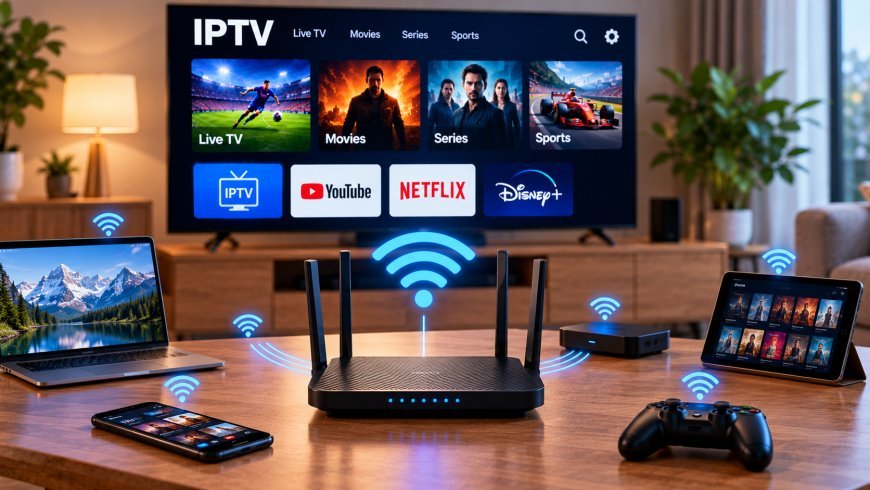
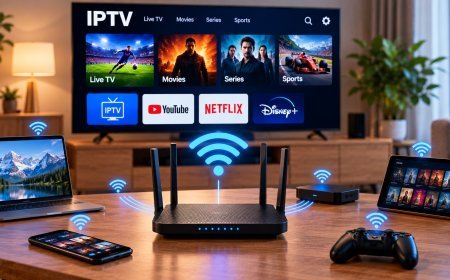
A reliable IPTV experience depends on more than the television or streaming application. The home network also plays an important role in how smoothly live TV, sports, movies, and series are delivered to your device.
Even a fast broadband package can experience buffering when Wi-Fi coverage is weak, several devices are competing for bandwidth, or the router is poorly positioned. Understanding how your home network works can help you identify these problems before replacing applications or streaming hardware.
Why Network Stability Matters for IPTV
IPTV delivers video continuously over an internet connection. Unlike a downloaded file, a live stream needs data to arrive consistently while you are watching.
If the connection temporarily slows or disconnects, the IPTV player may run out of buffered video.
This can result in:
-
Buffering
-
Freezing
-
Slow channel changes
-
Reduced picture quality
-
Playback interruptions
-
Delayed program loading
Maximum internet speed matters, but connection stability is often just as important.
Start by Testing Your Internet Connection
Before changing router settings or purchasing new equipment, test the internet connection on the device you actually use for IPTV.
Running a speed test on a smartphone beside the router may not accurately represent the connection available to a Smart TV in another room.
Where possible, test from the television, streaming box, computer, or a device positioned in the same location.
Run several tests at different times of day to see whether performance remains reasonably consistent.
Understand the Difference Between Speed and Stability
People often focus entirely on download speed when troubleshooting streaming.
A connection can show a high speed during a short test and still suffer from intermittent drops or congestion.
For IPTV, a stable connection is important because video data needs to arrive continuously.
If the speed repeatedly changes dramatically, investigate the local network even if the highest recorded result looks impressive.
Position Your Wi-Fi Router Carefully
Router placement can significantly affect wireless performance.
A router placed inside a closed cabinet, behind a television, or in the corner of a large property may struggle to provide strong coverage everywhere.
For better Wi-Fi distribution, try to position the router:
-
In an open location
-
Away from large metal objects
-
Away from thick walls where possible
-
Near the center of the area requiring coverage
-
Above floor level
-
Away from equipment that may create interference
Moving the router even a short distance can sometimes improve signal quality.
Use Ethernet for Stationary Devices
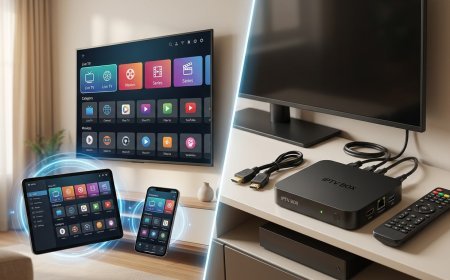
If your television or streaming box remains in one place, Ethernet can be worth considering.
A wired connection links the device directly to the router and avoids many of the environmental factors that can affect Wi-Fi.
Compatible devices may include:
-
Smart TVs
-
Android TV boxes
-
Desktop computers
-
Some Apple TV models
-
Other media players
Ethernet does not automatically solve every streaming problem, but it can help determine whether Wi-Fi is contributing to unreliable playback.
When Wi-Fi Is the Better Option
Running a network cable across a house is not always practical.
Modern Wi-Fi can provide a good streaming experience when signal strength and network conditions are suitable.
If you rely on Wi-Fi, check how strong the connection is where the streaming device is located.
A television showing only a weak wireless signal may benefit from better router placement, a mesh system, or another network improvement.
Consider Wi-Fi Frequency Bands
Many modern routers support more than one Wi-Fi frequency band.
Different bands can provide different combinations of coverage and performance.
A higher-frequency connection may provide strong performance at shorter distances, while another band may travel more effectively through walls and across longer distances.
The best option depends on:
-
Distance from the router
-
Building layout
-
Router capabilities
-
Streaming device
-
Nearby network interference
Testing available Wi-Fi connections can help determine which works more reliably in your particular room.
Reduce Network Congestion
IPTV may not be the only activity using your internet connection.
Modern homes can have many connected devices operating at the same time, including:
-
Smartphones
-
Tablets
-
Computers
-
Gaming consoles
-
Smart TVs
-
Security cameras
-
Cloud backup systems
-
Smart home devices
Video calls, game downloads, software updates, and multiple simultaneous streams can all consume bandwidth.
If IPTV begins buffering unexpectedly, check what else is happening on the network.
Temporarily stopping large downloads can help determine whether congestion is contributing to the problem.
Check Your IPTV Device and Application
Not every streaming issue originates from the router.
The device and IPTV application also influence performance.
For example, an older Smart TV may have limited memory or slower hardware, while an outdated application may behave differently after operating-system changes.
Viewers researching IPTV services, supported devices, and installation guidance for the Swedish market can review First Class IPTV when comparing setup options and compatible IPTV players.
Regardless of the service used, keeping the selected device and application properly configured can help simplify troubleshooting.
Restart Network Equipment When Problems Appear
Routers and streaming devices sometimes develop temporary connectivity problems.
A simple restart can refresh network connections and clear short-term software issues.
If streaming suddenly becomes unreliable:
-
Close the IPTV application.
-
Restart the streaming device.
-
Restart the router if necessary.
-
Reconnect to the network.
-
Test several channels again.
Avoid resetting the entire router to factory settings unless you understand how to restore the network configuration afterward.
Keep Router Firmware Updated
Router manufacturers may release firmware updates that address stability, security, and compatibility issues.
If your router supports automatic updates, check whether the feature is enabled.
Otherwise, review the router manufacturer's official documentation before performing a manual update.
Never install firmware intended for a different router model.
Consider a Mesh Wi-Fi System for Larger Homes
A single router may not provide strong coverage throughout a large property.
Mesh Wi-Fi systems use multiple connected access points to extend wireless coverage across different rooms or floors.
They can be useful when:
-
The television is far from the main router
-
Thick walls reduce signal strength
-
Several floors require coverage
-
Certain rooms have consistent Wi-Fi dead zones
A mesh system is not necessary for every household, so first confirm that coverage is actually the problem.
Avoid Poorly Positioned Wi-Fi Extenders
Wi-Fi extenders can help in certain situations, but placement matters.
An extender positioned where the original signal is already extremely weak has little quality signal to repeat.
If you use an extender, place it where it can still maintain a reliable connection to the main router while improving coverage toward the streaming device.
For more demanding networks, wired access points or mesh systems may provide a more integrated solution.
Test Multiple IPTV Channels
When diagnosing buffering, determine whether the problem affects the entire service.
Try several unrelated channels.
If only one stream has difficulty while other channels work normally, changing your home network may not solve the issue.
If nearly every channel buffers and other internet applications also perform poorly, the network becomes a more likely cause.
Compare With Another Streaming Service
Another useful troubleshooting step is opening a legitimate mainstream video application on the same device.
If multiple streaming platforms buffer or lose connection, the issue may be related to the internet connection, Wi-Fi, or device.
If everything else works normally, investigate the IPTV application or individual stream before changing the network.
Try Another Device
Testing the same network from another device can reveal useful information.
For example, if IPTV works smoothly on a wired computer but buffers on a Wi-Fi-connected television, the difference may relate to wireless coverage or the TV itself.
If several devices experience the same issue simultaneously, the router or broadband connection may deserve closer attention.
Keep Streaming Devices Updated
Smart TVs, Android devices, Apple TV, computers, and other streaming equipment receive software updates over time.
Updates can improve compatibility and resolve technical issues.
You should also keep your IPTV player current through the appropriate official application store when updates are available.
Restart the device after major updates if necessary.
Avoid Running Unnecessary Background Apps
Streaming boxes and Smart TVs have limited processing resources.
Applications running in the background may use memory, processing power, or network bandwidth.
If your device feels slow:
-
Close unused applications
-
Remove apps you no longer need
-
Restart the device
-
Check available storage
A clean device can be easier to troubleshoot and maintain.
Choose a Suitable Stream Quality
Higher-resolution video requires more data.
4K streams generally place greater demands on the internet connection than HD or lower-resolution alternatives.
If very high-resolution content frequently buffers while lower-resolution streams work well, available bandwidth may be part of the issue.
Selecting a quality level appropriate for your connection can provide a more consistent experience.
Be Careful With Router Settings
Advanced router menus contain many options, but randomly changing them can create new problems.
Avoid modifying technical settings unless you understand their purpose.
For most households, the most useful improvements are relatively simple:
-
Better router placement
-
Stronger Wi-Fi coverage
-
Ethernet where practical
-
Reduced network congestion
-
Updated equipment
-
Correct device configuration
Complex adjustments are rarely the best first troubleshooting step.
When Should You Consider Replacing the Router?
Routers do not necessarily need frequent replacement.
However, upgrading may be worth considering if the existing router is very old, no longer receives security updates, consistently struggles with your current broadband connection, or cannot provide adequate coverage for the number of devices in your home.
Before purchasing new equipment, verify that the router is actually the bottleneck.
Replacing hardware without diagnosing the problem can be expensive and may leave the original issue unresolved.
Create a Simple Troubleshooting Routine
When IPTV begins buffering, use the same troubleshooting order each time.
Step 1: Test Different Channels
Determine whether the issue affects one stream or many.
Step 2: Check Other Streaming Applications
See whether the problem affects the entire internet connection.
Step 3: Check Network Activity
Pause large downloads or unnecessary background tasks.
Step 4: Restart the Player and Device
Clear temporary software problems.
Step 5: Test Wi-Fi Strength
Check whether the device has a reliable signal.
Step 6: Test Ethernet
If possible, connect directly to the router.
Following a consistent process helps prevent unnecessary changes.
Final Thoughts
A reliable home network is an important foundation for IPTV streaming. Internet speed matters, but Wi-Fi coverage, network congestion, router placement, device performance, and connection stability can be equally important.
Before replacing an IPTV player or streaming device, test the network carefully. Compare Wi-Fi with Ethernet, check other connected devices, test several streams, and make sure your equipment is updated.
Keeping the setup straightforward and troubleshooting one component at a time makes it much easier to identify the real cause of buffering and create a more consistent streaming experience.
What's Your Reaction?
 Like
0
Like
0
 Dislike
0
Dislike
0
 Love
0
Love
0
 Funny
0
Funny
0
 Angry
0
Angry
0
 Sad
0
Sad
0
 Wow
0
Wow
0